# Create products from a JSON feed

### Add new Stockeo automation

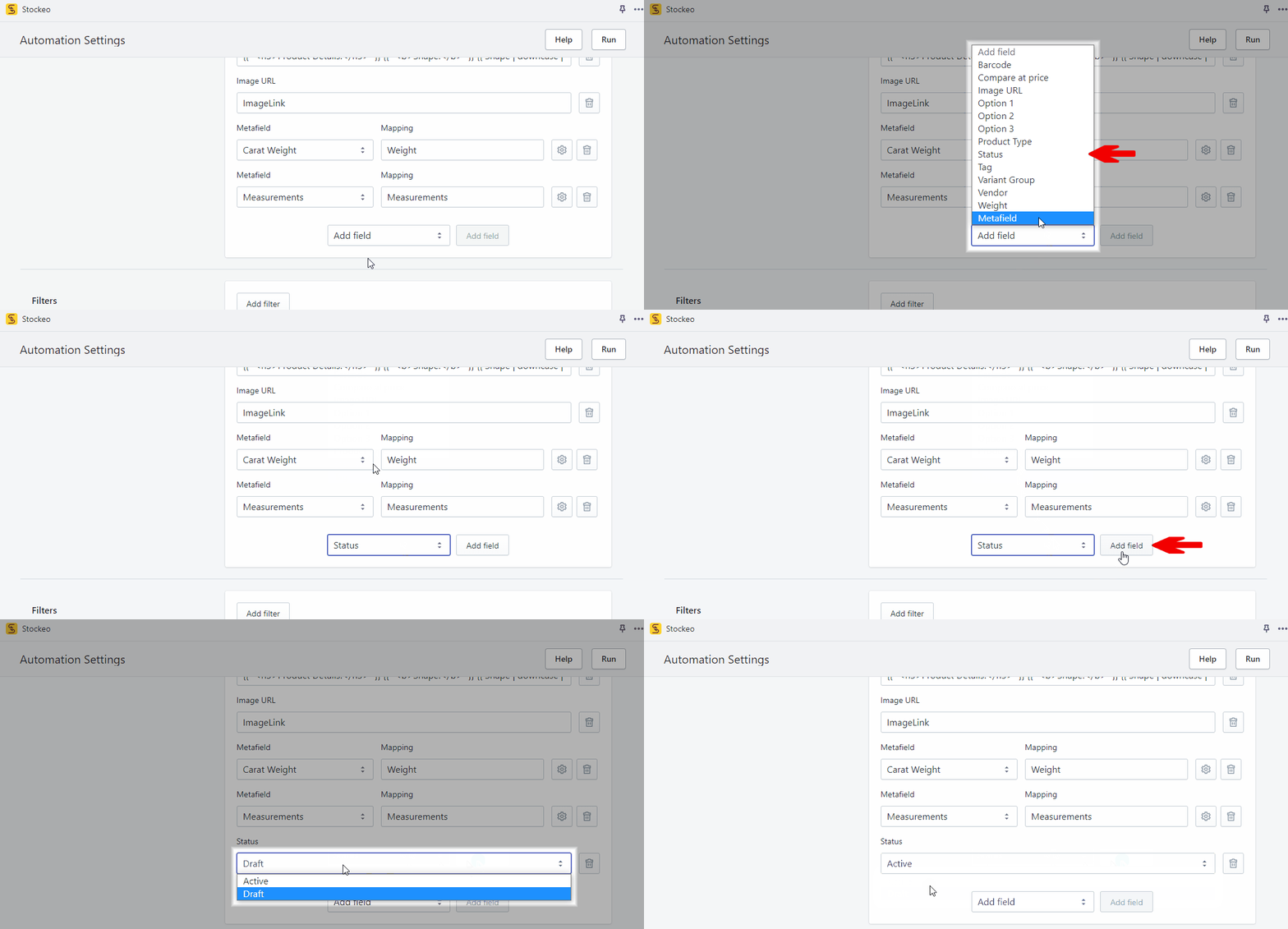
First, add a new Stockeo automation. Navigate to your **Shopify admin panel** → **Apps** → **Stockeo**. Click **Create Automation**. Type the automation name (or leave the default one). In the **Processing Mode** section pick whether to update or create (this option in our case) products. The **Schedule** section allows you to set when the automation should run.

<figure><img src="/files/hqiZqqfVzMAjJcjKpIbA" alt="How to add a new Stockeo automation with the create processing mode animated"><figcaption><p>Add a new Stockeo automation with the create processing mode</p></figcaption></figure>
### Set the connection

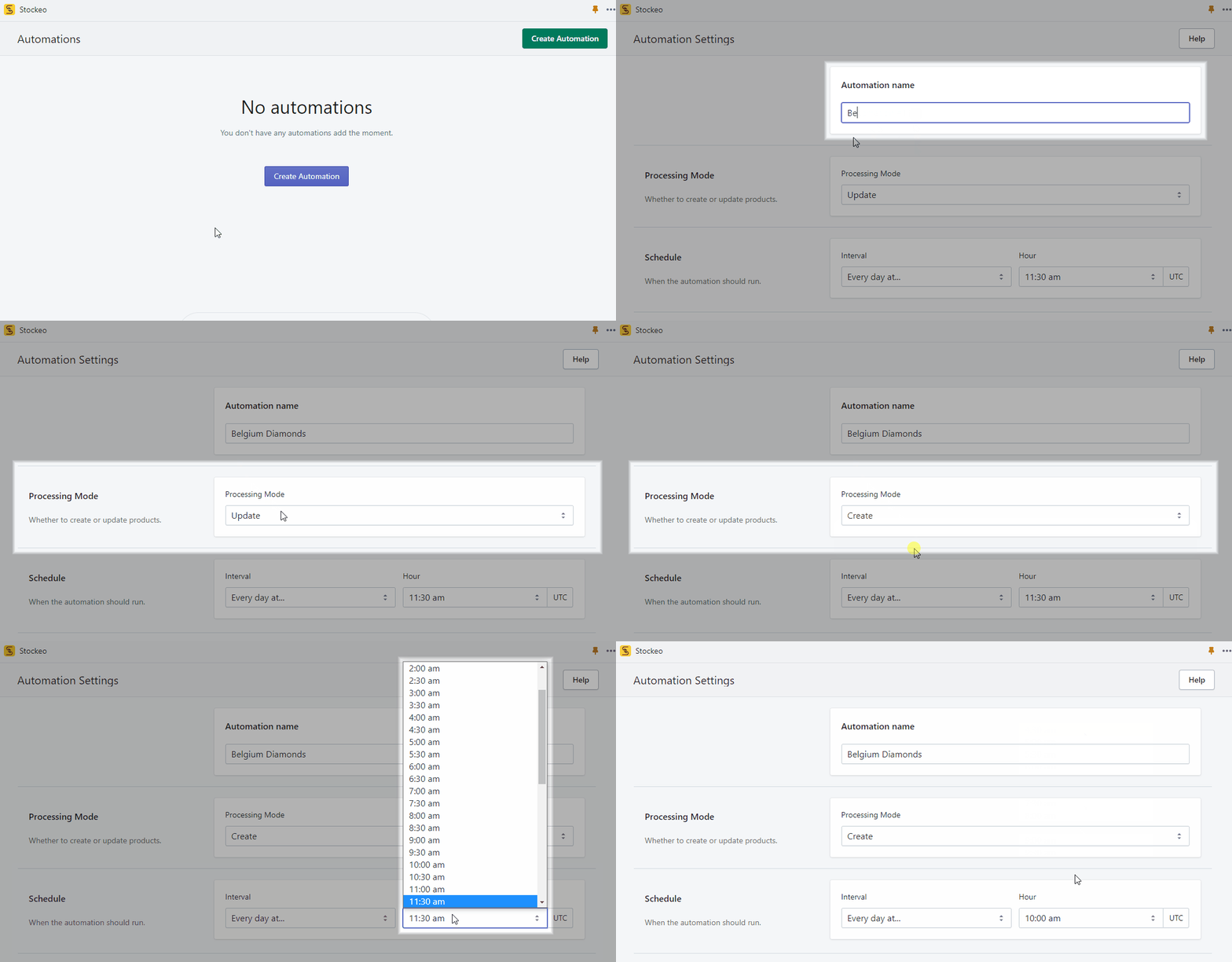
Set where to get the product feed from. Pick one of the available channels - HTTP, FTP, or Email. If you are going to use the first option, pick the method (GET or POST) and paste the URL. You can also add headers and select an authentication method. To check if your connection works fine, click on Test.

<figure><img src="/files/4HqijE7720kc6TUFgmw6" alt="How to set up an HTTP connection in Stockeo animated"><figcaption><p>Set up an HTTP connection in Stockeo</p></figcaption></figure>

### Data Mapping

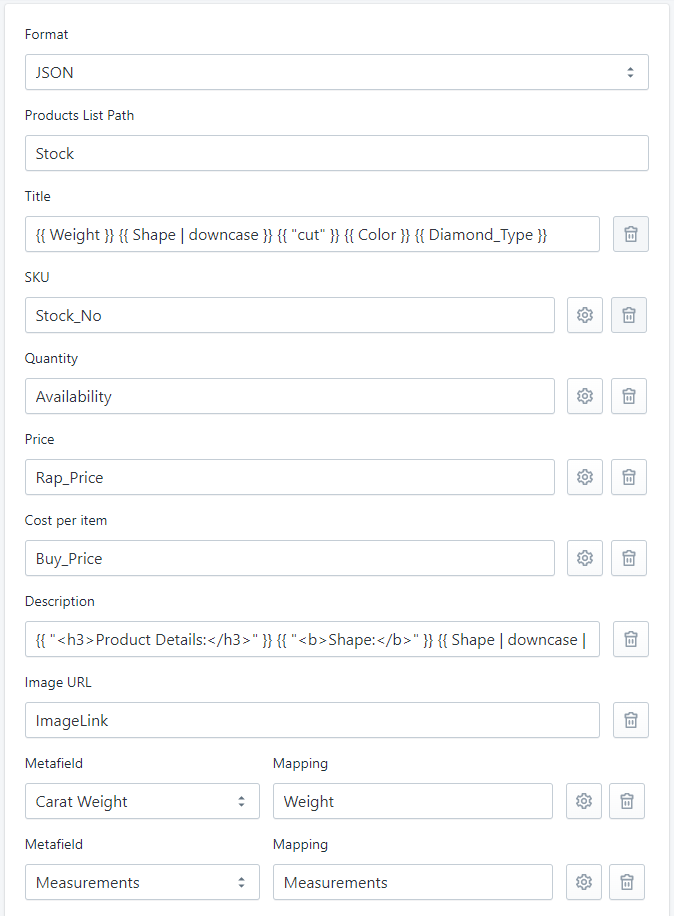
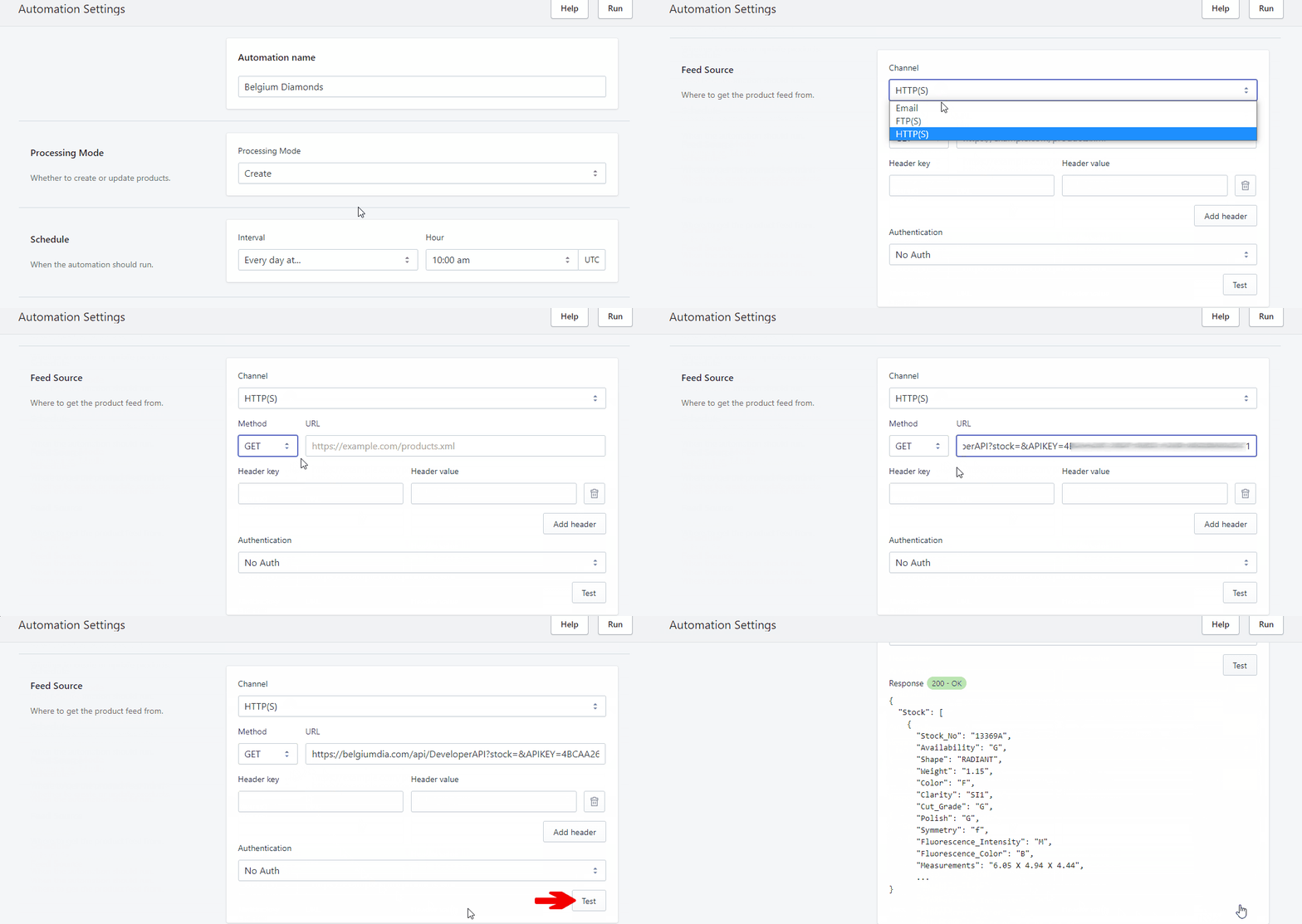
Let's move to the Data Mapping section. Start by choosing the JSON file format. Then, for the subsequent properties, assign the corresponding names from the JSON. You also can decide whether products created in this automation will have Draft or Active status.

{% tabs %}
{% tab title="Stockeo Data Mapping section" %}

<figure><img src="/files/c5uolw8fQMPrxanNfZ4d" alt="How to configure data mapping section in the Stockeo app for Shopify when you want to create products"><figcaption><p>Data Mapping configuration</p></figcaption></figure>
{% endtab %}

{% tab title="JSON feed" %}

```json
{
  "Stock": [
    {
      "Stock_No": "13369A",
      "Availability": "G",
      "Shape": "RADIANT",
      "Weight": "1.15",
      "Color": "F",
      "Clarity": "SI1",
      "Cut_Grade": "G",
      "Polish": "G",
      "Symmetry": "f",
      "Fluorescence_Intensity": "M",
      "Fluorescence_Color": "B",
      "Measurements": "6.05 X 4.94 X 4.44",
      "Lab": "GIA",
      "Treatment": "",
      "FancyColor": " ",
      "Fancy_Color_Intensity": " ",
      "FancyColorOvertone": " ",
      "DEPTH_PER": "89.9",
      "TABLE_PER": "64",
      "Girdle_Min": "Very Thick",
      "Girdle_Max": "Extremely Thick",
      "Girdle_Per": "",
      "Girdle_Condition": "",
      "Culet_Size": "VS",
      "Culet_Condition": "",
      "Crown_Height": "",
      "Crown_Angle": " ",
      "Pavilion_Depth": " ",
      "Pavilion_Angle": "",
      "Cert_Comments": "Surface graining is not shown.",
      "Country": "USA",
      "State": "NY",
      "City": "New York",
      "Country_Of_Origin": "BWA",
      "Key_To_Symbols": "FeatherCrystalIndented NaturalNaturalExtra Facet",
      "Shade": "None",
      "Star_Length": "",
      "Report_Issue_Date": "08/27/2019",
      "Report_Type": "Diamond Grading Report",
      "Milky": "None",
      "Eye_Clean": "Yes",
      "Gemprint_ID": "",
      "BGM": "NO",
      "Ratio": "1.22",
      "Diamond_Type": "Natural Diamond",
      "Member_Comments": " GD MAKE +2% RAP For Memo Service/Free Ship To HK",
      "Time_to_Location": "",
      "LsMatchedPairSeparable": "",
      "Pair_Stock": " ",
      "Allow_Raplink_Feed": "",
      "Parcel_Stones": "",
      "Center_Inclusion": "None",
      "Black_Inclusion": "None",
      "Lab_Location": "",
      "Brand": "",
      "Sarine_Name": null,
      "Internal_Clarity_Desc_Code": "SWVG",
      "Clarity_Description": "Eye Clean White Side",
      "Modified_Rate": "",
      "wire_discount_price": "",
      "ImageLink": "https://dnalinks.in/13369A/still.jpg",
      "VideoLink": "https://dnalinks.in/13369A/video.mp4",
      "Video_HTML": "https://dnalinks.in/13369A/13369A.html",
      "CertificateLink": "https://dnalinks.in/certificate_images/5202542015.pdf",
      "Rap_Price": "5500",
      "Memo_Price": "3190",
      "Memo_Discount_PER": "-42.00",
      "Buy_Price": "3080",
      "Buy_Price_Discount_PER": "-44.00",
      "COD_Buy_Price": "2970",
      "COD_Buy_Price_Discount_PER": "-46.00",
      "Certificate": ""
      }
   ]
}
```

{% endtab %}

{% tab title="Full Description formula" %}

```liquid
{{ "<h3>Product Details:</h3>" }} {{ "<b>Shape:</b>" }} {{ Shape | downcase | append: "<br/>" }} {{ "<b>Cut Grade:</b>" }} {{ Cut_Grade | append: "<br/>" }} {{ "<b>Color:</b>" }} {{ Color | append: "<br/>" }}// Some code
```

{% endtab %}
{% endtabs %}

It can be that there is no product title in the feed. However, the title is required by Shopify for creating a product. In this case, use the Liquid formula to combine properties from the feed to create a[ product title](/data-mapping/title.md). Similarly, with the Liquid formula, you can create an [SKU](/data-mapping/sku.md#generate-sku-with-the-liquid-formula) and [description](/data-mapping/description.md).

The feed above does not contain the number quantity, but the text. Find more on [how to transform a text quantity to number](/data-mapping/quantity-settings.md#transform-text-to-number).

You can also decide whether the products created should have a draft or active status. If you choose neither, by default the products will be the draft.

<figure><img src="/files/I2rzruiBIpg3ezXvSHuz" alt="How to select status for products to be created animated annotated"><figcaption><p>Select status for products to be created</p></figcaption></figure>

### Speed up the automation using filters

If you have or plan to have products from other suppliers then a good practice is to add a fixed tag for this supplier, and also set a filter on this tag.

<figure><img src="/files/R2H90qJFj1TDNcdKlbRM" alt="Set tag and filter for products annotated"><figcaption><p>Set tag and filter for products</p></figcaption></figure>

This will speed up processing, and make it easier to bulk edit or delete the products in case there would be something wrong with the imported data.

### Run your automation

To see how it works, wait for a scheduled action or click **Run** to create products right away. Then navigate to the Stockeo **History** section. If you can see '**In progress**' status, please refresh the page. The creation time depends on the feed size and the number of products. When the status is '**Success**', you can click on **Details** to check how many and which products have been created. Click an SKU to see the created product.

<figure><img src="/files/XopYwVhjgV4D0XVQpGUL" alt="Run the Stockeo automation animated annotated"><figcaption><p>Run the Stockeo automation and check the result</p></figcaption></figure>


---

# Agent Instructions: Querying This Documentation

If you need additional information that is not directly available in this page, you can query the documentation dynamically by asking a question.

Perform an HTTP GET request on the current page URL with the `ask` query parameter:

```
GET https://help.stockeo.solvenium.com/common-use-cases/create-products-from-a-json-feed.md?ask=<question>
```

The question should be specific, self-contained, and written in natural language.
The response will contain a direct answer to the question and relevant excerpts and sources from the documentation.

Use this mechanism when the answer is not explicitly present in the current page, you need clarification or additional context, or you want to retrieve related documentation sections.